
Your own shop on your own address, with a weekly menu.
An online store under your name, where customers order for delivery, come back for their usuals and track the order to the door. It sells from the same count your team works from, so it cannot sell what is not on the shelf.
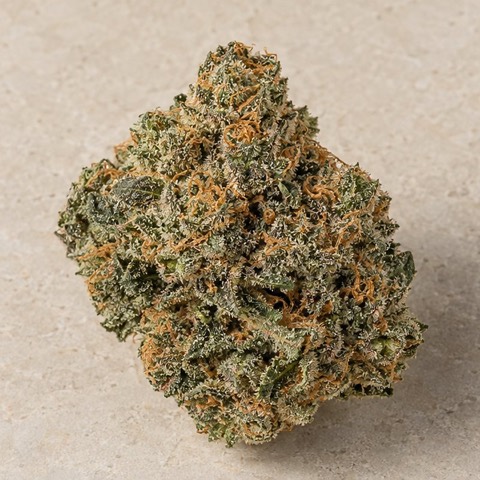
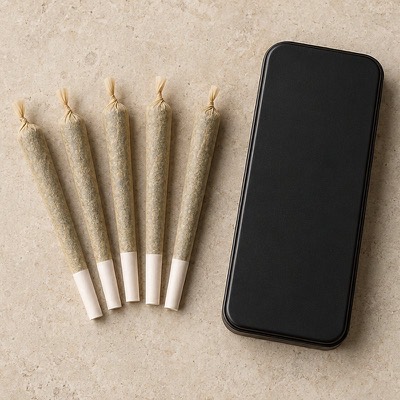
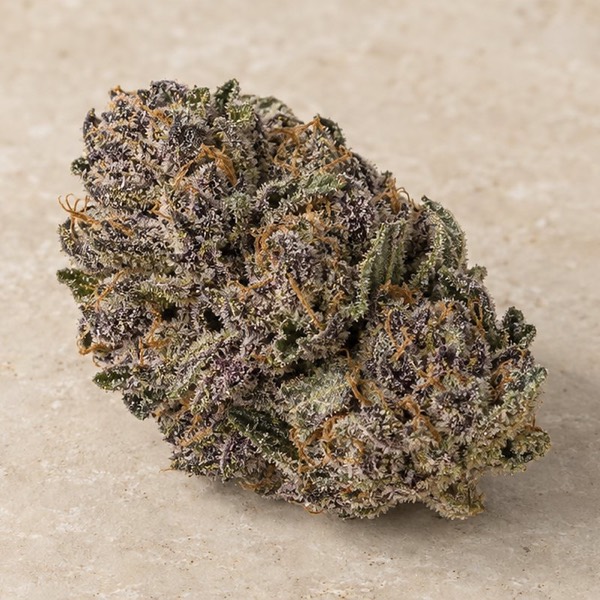
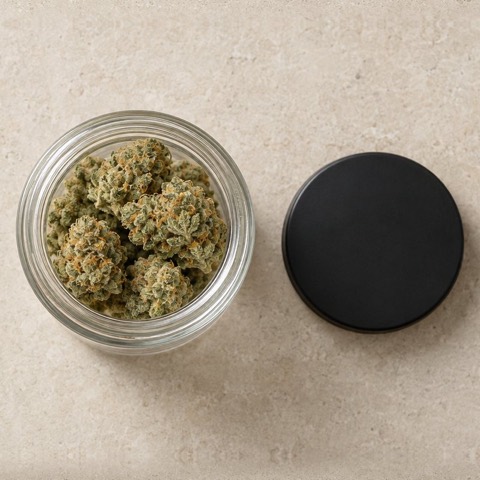
Your name on the door, and your customers in your own list.
Taking orders by text means copying every one by hand. Selling through a page on someone else’s site means their address, their fee on each order and their list of your customers. Storefront is your own shop: your name, your logo, your photos, your web address. Whoever signs up there is in your customer list, and an order costs you $0 in fees to Cultivar.
Is Cultivar one product or four?
One system with four parts. This is the part your customers see. It reads its products, prices and stock from the back office.
Can I run only the shop?
The shop sells from your stock count, so the back office comes with it. The driver app and menu emails are yours to add when you want them.
How do my products get in?
Send us your menu or price list. Your products, sizes, prices and photos are loaded with you, and a product appears in the shop once it has a price and you switch it on.
A new menu every week, with a deal on any line.
Pick the products for the week, put them in order and set a deal where you want one: a percentage off, dollars off, or a set price. Give the menu a start time and an order-by time. It goes live on the hour you chose, the deal ends when you said it would, and the price at checkout is always worked out by the system, not by the page.
- Tags such as New, Staff pick or Limited on any item
- Start from last week’s menu and change what is different
- Look at it in your shop before your customers can
Discount codes sit beside the menu: a percentage or an amount off, a minimum order, start and end dates, and a limit on how many times a code or a customer can use it. One code per order.
Delivery on your terms: your windows, your streets, your fee.
You set the days and hours you deliver, how long before a window you stop taking orders for it, the ZIP codes you serve, the delivery fee and the order size that makes delivery free. The checkout offers only what you can do. A customer picks an address and a window, and the order lands in your list with its stock already promised.
- Windows for today and the next two days; closed ones are greyed out
- An address outside your ZIP codes is turned away before the order
- Pressing the button twice cannot place two orders
Customers pay the way you already take payment. You list your methods, such as cash at the door or Zelle, with your own instructions. The customer picks one, and your staff confirm the payment against the order. There is no card checkout.
It remembers the usual.
A returning customer opens your shop and sees what they buy most, ready to add, and their last order with one button to place it again. Their addresses are saved, their past orders are listed, and each order they place earns points toward the next one.
- “Your usuals”: their four most-ordered products
- Order again from any past order
- One point per dollar, and three tiers: Seedling, Bloom, Evergreen
No account needed for a first order. A customer can check out as a guest and make an account later.
On their home screen like an app. No app store.
Your customer adds your shop to their phone’s home screen from the browser, and it opens like any other app: your icon, your name, a bar of tabs along the bottom. No download, no store listing, no approval to wait for. Once it is there, your shop can send that phone an alert when their order is on the way and when the week’s menu goes live. These are app notifications, not text messages.
- Each order has its own page with every stage and every update
- An alert when it is confirmed, on the way and delivered
- A map of the driver on the way to the door

Two people, two screens, one shop.
Your customer, on the sofa with a phone.
Opens your shop from their home screen, taps their usual, picks tonight’s window. Under a minute for someone who has ordered before.
You or your manager, at a desk on Thursday.
Builds next week’s menu in the back office, sets the deals, looks at it in the shop before anyone else can, and sets it to go live on Monday morning.
The shop’s number is the shelf’s number.
The shop has no stock of its own. It reads the count kept in the back office, and everything a customer does there shows up in the other three parts.
- It sells from the count.
When the last one is promised, the shop shows it as sold out. Nobody phones a customer to say sorry.
Explore Operations - Its orders go to your drivers.
A packed order appears in the driver app as an open order to take.
Explore Delivery - Its menu becomes your email.
The menu you built for the shop is the email and the phone alert.
Explore Marketing
Questions owners ask.
Can customers pay by card?
No. Cultivar does not process cards. Customers choose one of the ways you take payment, such as cash at the door or Zelle, see your instructions, and your staff confirm the payment on the order.
Do my customers have to download an app?
No. The shop is a website that works in any phone browser. Customers who want it on their home screen add it from the browser in two taps, with no app store involved.
Can it sell something I do not have?
No. An order promises its stock the moment it is placed, and the shop only offers what the count says can be sold. Two customers cannot both buy the last one.
Can I change how it looks?
Your name, your logo, your product photos and the lead picture on each week’s menu are yours. The layout is the same for every shop, so it stays fast and works on every phone.
Is it on someone else’s site?
No. It is on your own web address, and it lists only your products. Customers who sign up are in your customer list.

See your own menu in your own shop.
Send us your menu or price list and the demo opens on your products, at your prices.
- You send this.
- We load your products and what is on the shelf.
- Thirty minutes: one order, from supplier to door.
See pricingOne flat fee per location. $0 per order.