
Paste your supplier’s list and it becomes the purchase order
Purchase orders now start from the list you already write. Paste it, fix the few cells we could not read, and mark it as ordered. Receiving is rebuilt around counting what is in the box, strain by strain, and the home screen opens on what needs you today.
A beta release note. Cultivar is in private beta, and this was written for the shops and the team testing it.
Worth testing first
If you only have twenty minutes, these are the changes most likely to affect your day, and the ones where we would most like to hear if something feels off.
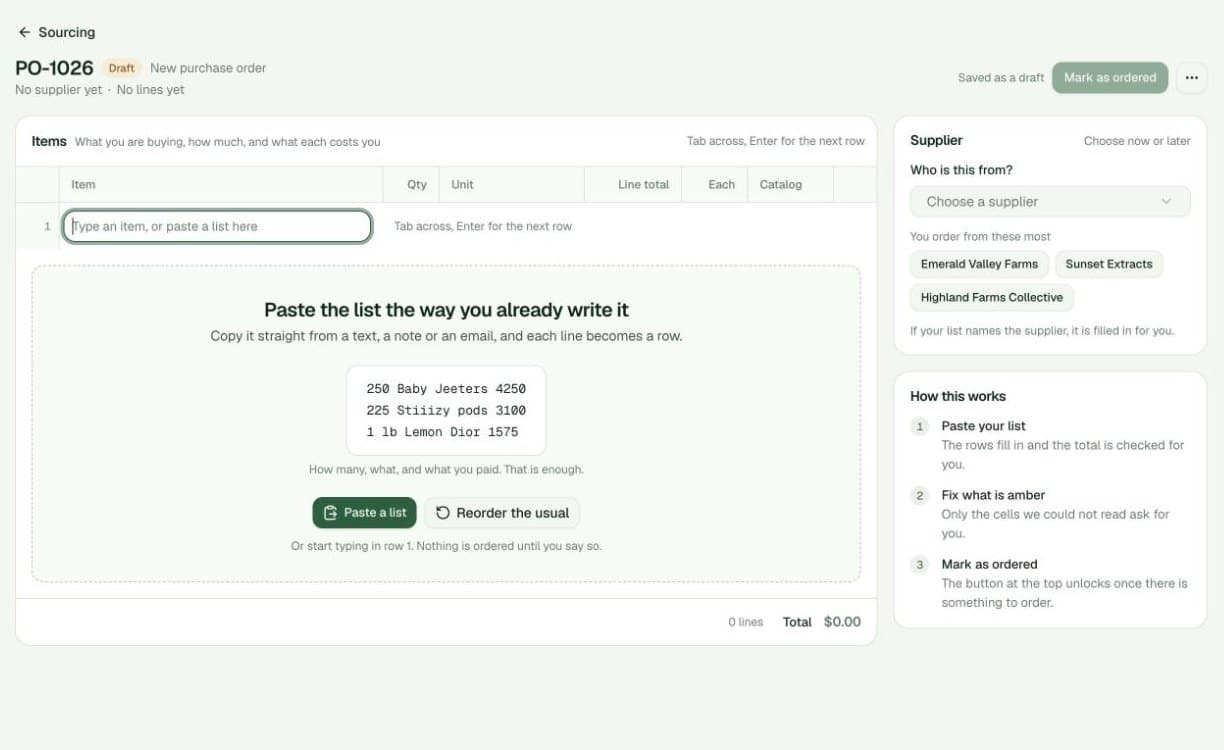
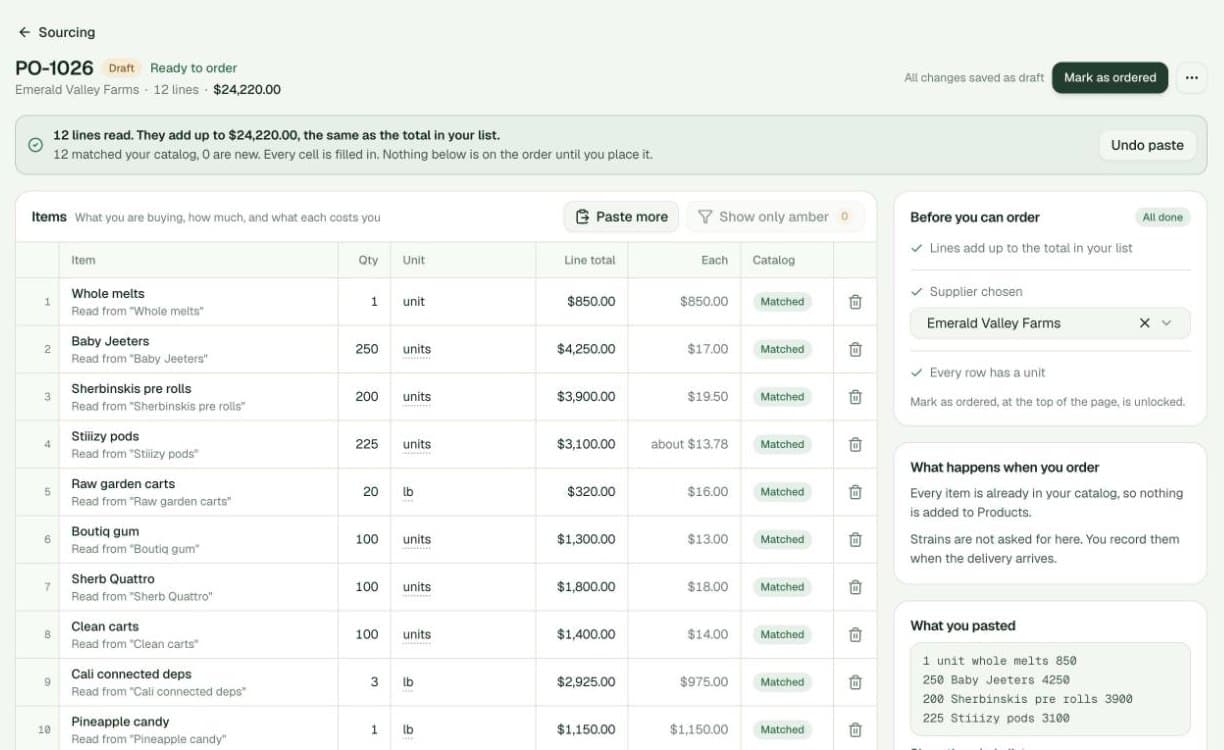
- Paste a real listGo to Sourcing and press New purchase order. Copy a list from a text or an email (how many, what, and what you paid on each line) and paste it. Each line becomes a row, and if your list ends with a total we check the rows add up to it.
- Fix only what is amberAnything we could not read is marked amber, usually a unit ("3 of what?") or the supplier. Answer once and tick the box to apply the same answer to the other rows. Mark as ordered unlocks when nothing amber is left.
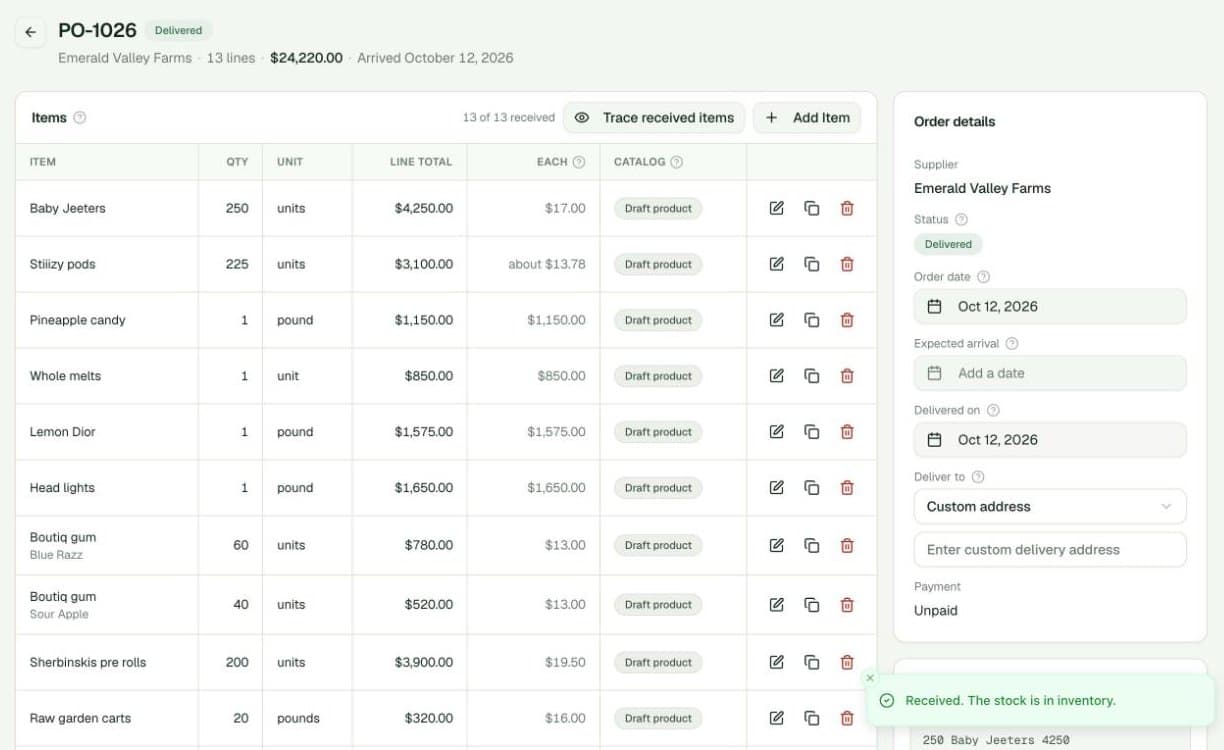
- Receive a delivery by strainOpen an ordered purchase order and press Receive items. Count each line as you unpack it. Where a box holds several strains, add each strain and its count; the line splits itself and the cost follows the count.
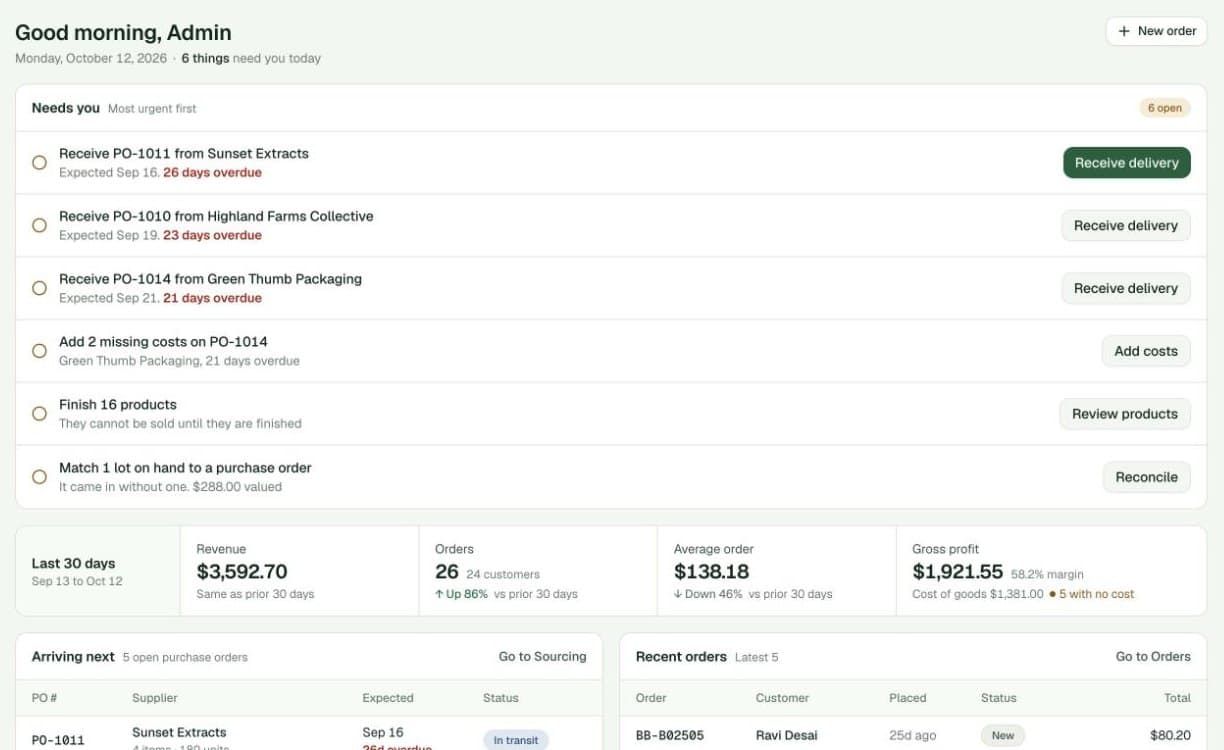
- Start your day from the home screenNeeds you lists the deliveries that are late, the orders with missing costs and the products that cannot be sold yet, most urgent first, each with one button that takes you straight to the job.
- Turn on demo dataOwners and admins: the sandbox is now one switch at the top of the page. Turn it on to work in a copy of your shop with sample data, turn it off to come back.
Purchase orders from a pasted list
Building an order used to mean a form per line: find the product, pick the size, type the quantity and the cost, twelve times over. Most orders already exist as a list in a text message.
- A new purchase order is a grid, not a form. Type into it like a spreadsheet (Tab moves across, Enter starts the next row) or paste a whole list at once.
- The list is read as you wrote it. Quantity, name and what you paid are picked out of each line. Names are matched to your catalog, and anything that is not in it yet is marked New and added as a draft product when you place the order.
- The total is checked for you. If the list ends with a total, the rows are added up and compared with it, so a mistyped line shows before the order is placed.
- You enter the line total, and the price of each is worked out. That is how suppliers quote. Where it does not divide evenly the price of each says "about", and the total you typed is what is kept.
- It remembers each supplier. What a supplier calls an item, and the unit they sell it in, is remembered the first time you answer, so the next list from them needs fewer answers.
- Add a supplier without leaving the order. New supplier is at the bottom of the supplier list.
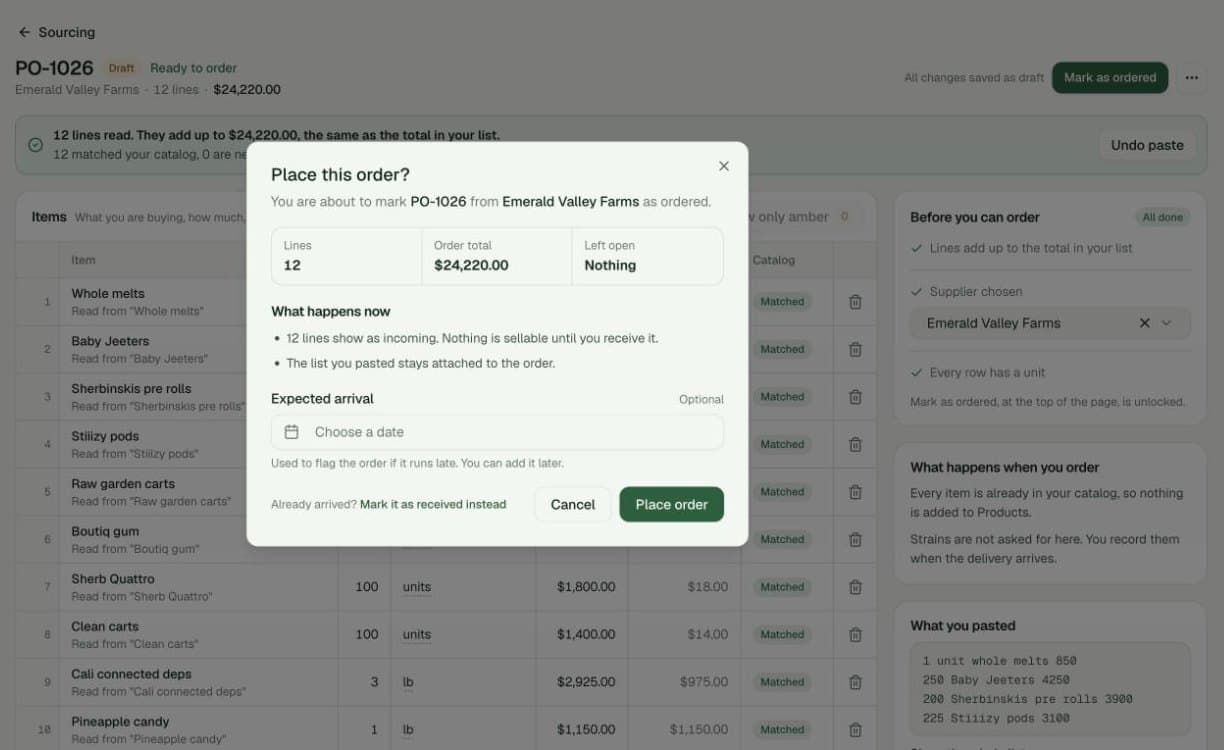
- A draft saves itself. Close the page and come back; it is under Sourcing, in the Draft tab. Nothing is on order until you press Mark as ordered, and no stock moves until the delivery is received.
Receiving
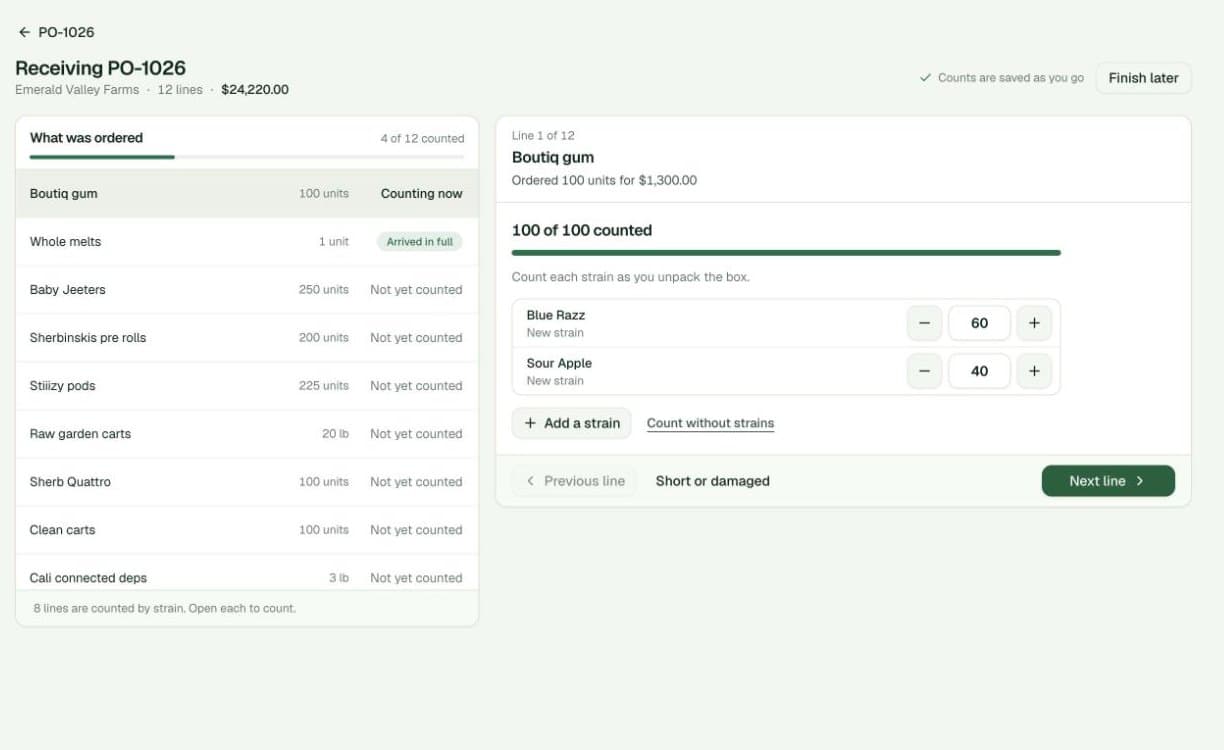
- One line at a time. The order is listed on the left and the line you are counting is on the right. If everything arrived, All arrived marks the rest in one press.
- Count by strain. Strains are no longer asked for when you order, because you often do not know them until the box is open. Add them as you count and the line splits into one line per strain.
- Short or damaged is recorded, not hidden. A shortfall is kept on the order as not delivered and nothing is added to stock for it.
- Counts are saved as you go. Finish later keeps what you have counted. Stock only moves when you press Finish receiving.
- It fits the device you are holding. At a desk it is an ordinary page inside the app. On a tablet or phone it takes the whole screen, with larger buttons.
Sourcing and home
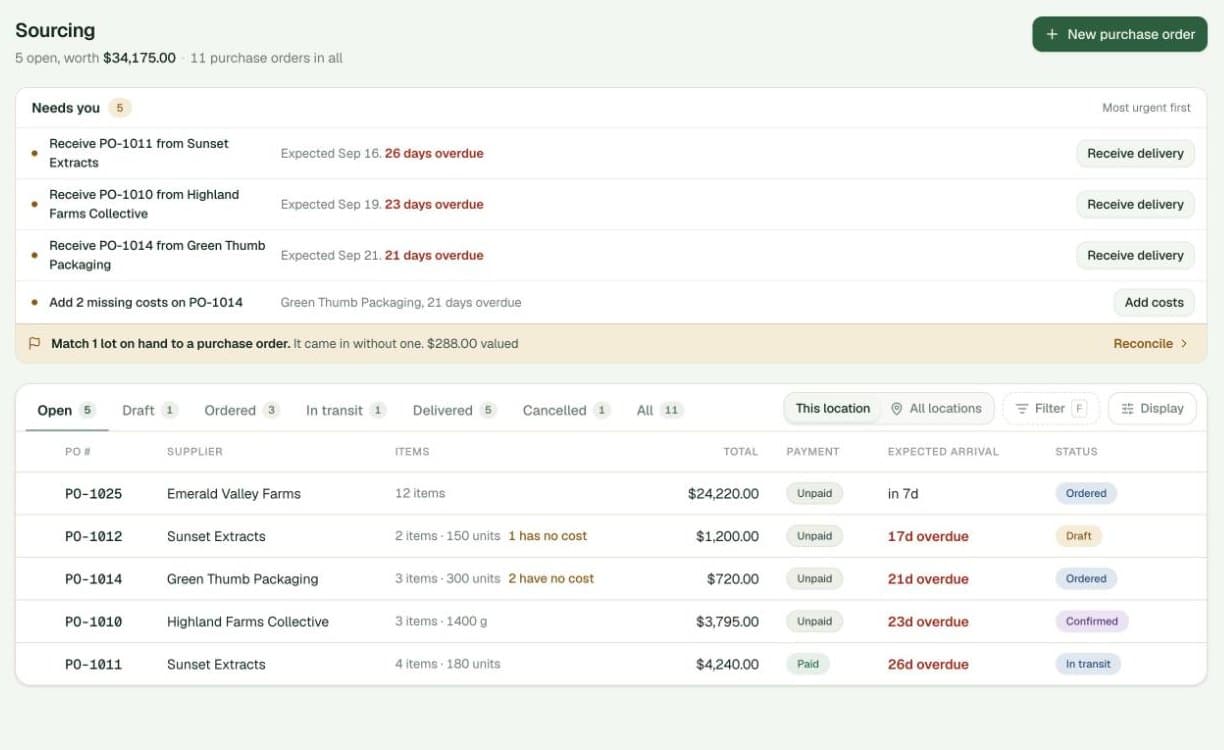
- Needs you, on both screens. Late deliveries, orders with missing costs, unfinished drafts, unfinished products and stock that came in without a purchase order, in order of urgency.
- The sales strip tells you more. Revenue, orders and average order each compare with the period before, and gross profit says how many sales had no cost recorded.
- Running low and Selling best replace two cards that said little. Running low lists what to reorder first; Selling best ranks the last 30 days.
- Purchase orders show what is unfinished. A row with a missing cost says so in the list, before you open it.
Demo data switch
- One switch instead of a setup page. The first time you turn it on, the sandbox is built with sample data. After that it is on or off.
- It no longer reads as a second organization. The wording that made the sandbox look like another business is gone. Reset and the outbox are under Sandbox settings.
Parts of this changed on October 27: placing an order no longer adds products, and strains are chosen when a delivery is checked in rather than by splitting a line. See that release for how it works now. If a list of yours is read wrong, send us the list exactly as you pasted it; that is the fastest way for us to fix it.